
Platform guide
Platform Features
TradeCJ brings market intelligence, execution, automation, risk controls, and platform tools into one trading workspace.
This page explains what each feature does, why it matters, and how it fits into the trading flow.
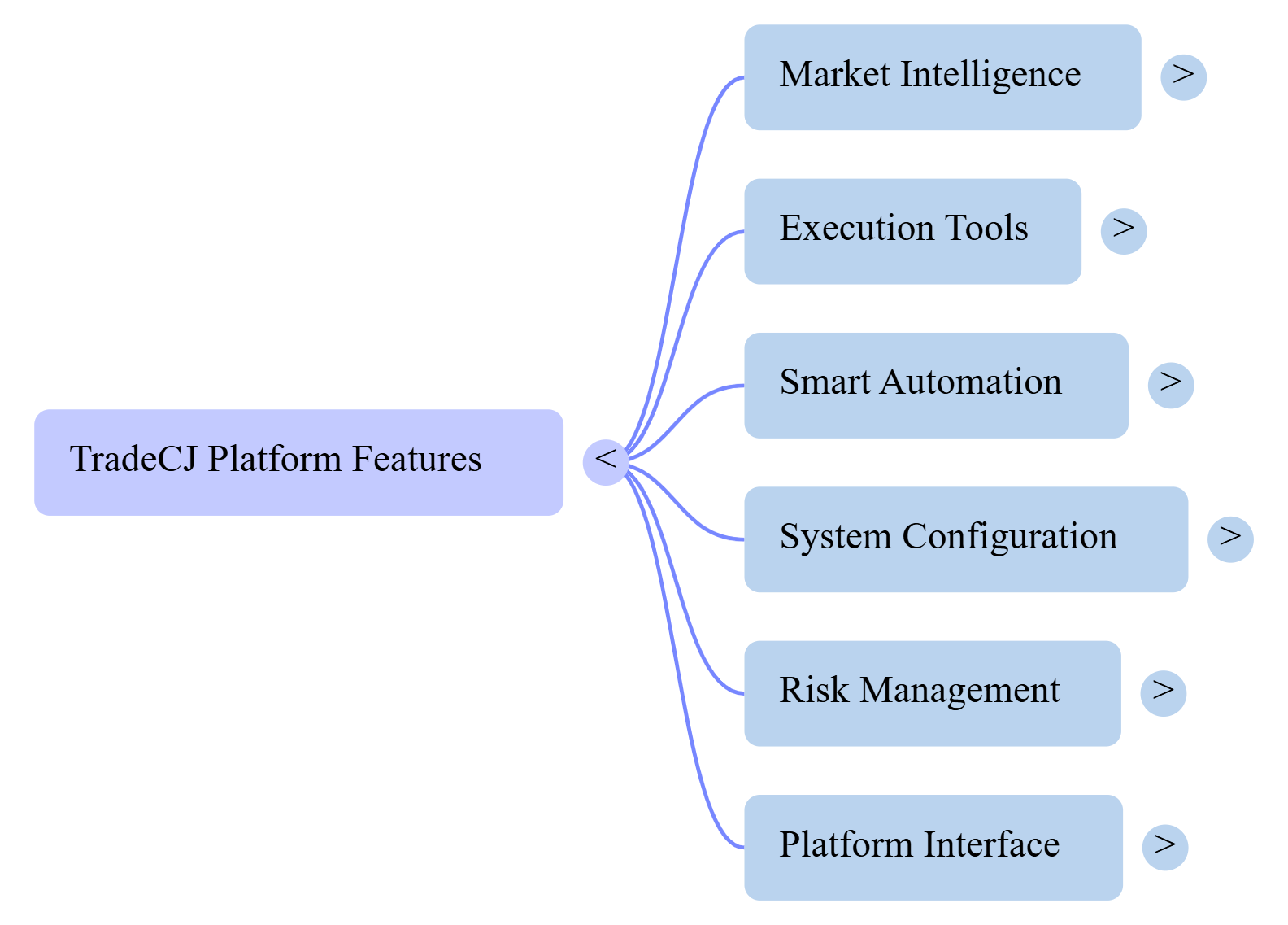
Category 1: Market Intelligence
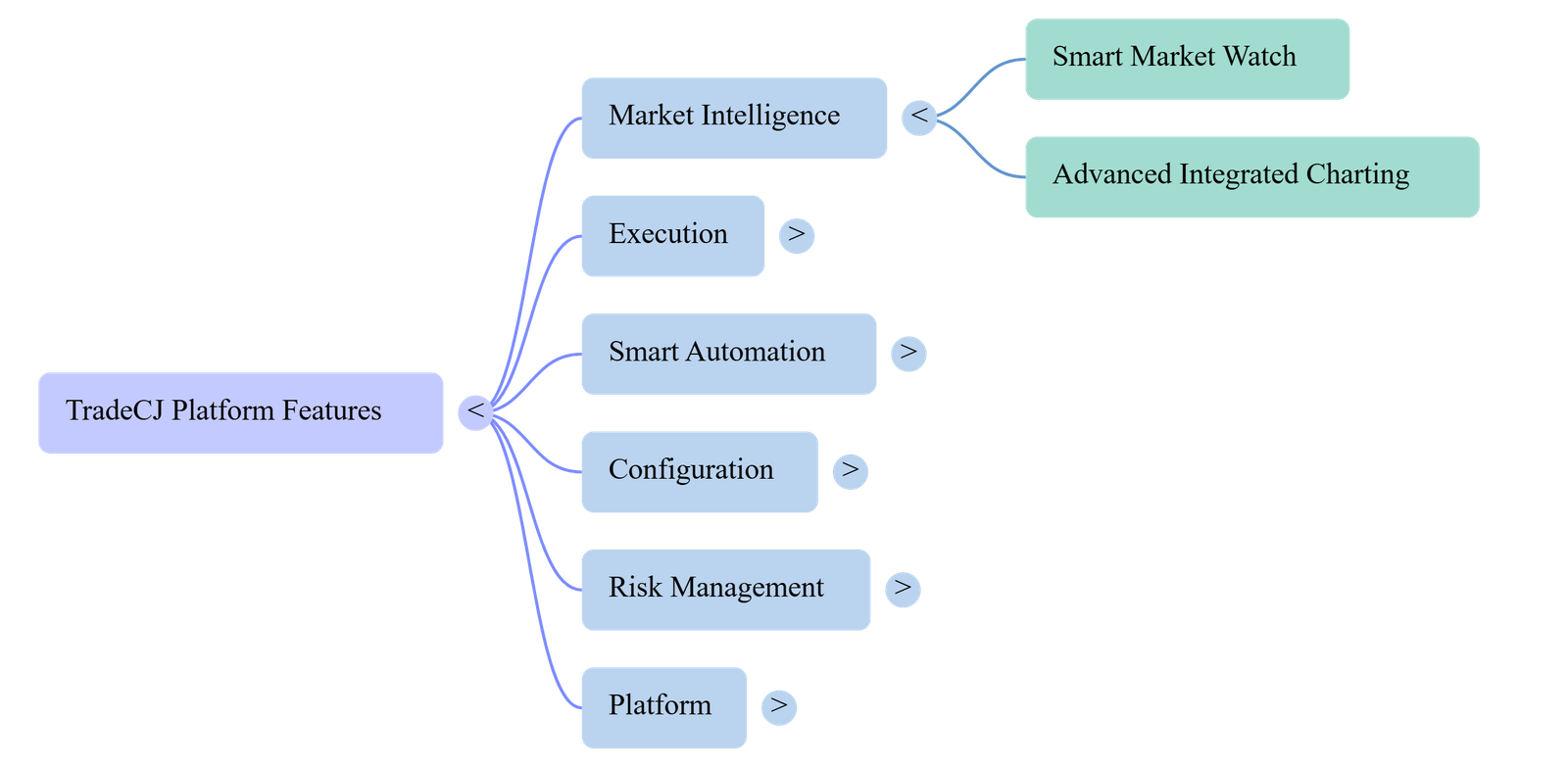
1.1 Smart Market Watch
Smart Market Watch ~ Know Exactly Where the Market Is Before You Trade
Smart Market Watch is a tool made for people who trade in the Forex market (the market where currencies like USD, EUR, INR etc. are bought and sold).
It is designed to show you exactly what you need to see quickly and clearly, so you don’t miss good trading opportunities.
| The Problem with Other Platforms | Why TradeCJ is Better |
|---|---|
| You have to scroll through hundreds of currency pairs you don’t even trade | Smart One-Click Filtering - Instantly shows only the pairs and assets that matter to your strategy |
| Price numbers are slow to update (lagging) | Always-On Live Panel - Market updates in real-time, no refreshing needed |
| You waste time switching between different apps just to check one thing | Everything in One Place - Smart Market Watch stays inside your TradeCJ dashboard like a smart TV that’s always running |
| By the time you find what you want… the opportunity is gone | Market Ready in One Second - The moment you open the platform, the live market is already in front of you |
| Slow process from watching to trading | Super Fast Trading - Go from seeing a good opportunity to placing a live trade in just ONE click |
How It Works
- It runs as a live, always-on panel directly inside your main TradeCJ dashboard.
- The moment you open the platform, it shows the market in real-time — no refresh needed.
- With one click, the smart filter shows only the currency pairs and assets that matter to your strategy (hides everything else).
- All your selected pairs stay active and updated live.
- Clicking on any pair instantly updates the chart and Order Matrix.
- Because it is fully connected to the execution engine, you can go from watching a pair to placing a live trade with just one click.
See This On:\ You will locate it at the left side on the TradeCJ dashboard as Instrument Panel > Instruments Search > Favourites.
1.2 Advanced Integrated Charting
Advanced Integrated Charting ~ Analyse. Decide. Execute. All in one place.
Integrated Smart Charting is a powerful tool that brings charting and trading together on the same screen.
Instead of analysing the market on one platform and then switching to another to place trades, everything happens in one place. This saves time, reduces mistakes, and helps you catch opportunities before they disappear in fast-moving markets.
| Problem with Other Platforms | Why TradeCJ is Better |
|---|---|
| Charting and trading are on two different platforms | Everything is combined on one single screen |
| You analyse on one screen, then switch to place the trade | No switching tabs or apps - Analyse and trade at the same time |
| Price moves while you are switching between platforms | Real-time updates - Chart and trading tools stay in perfect sync |
| You often miss the entry you were watching | Faster execution - Place trades instantly without losing your setup |
How It Works
- The charting tool is built directly into the main trading dashboard.
- When you change a currency pair, the chart updates instantly.
- You can easily resize or adjust its position.
- When you change the timeframe, all tools update together automatically.
- Suitable for all traders, from beginners using simple candlestick patterns to advanced users with multiple indicators.
- Everything works smoothly because all parts are connected in one system.
See This On:\ The Smart Charting Panel is located in the centre of the main trading dashboard. Instruments Panel > Graph It stays visible alongside other important tools like Market Watch and Order tools, so you have everything you need in one view.
Category 2: Execution
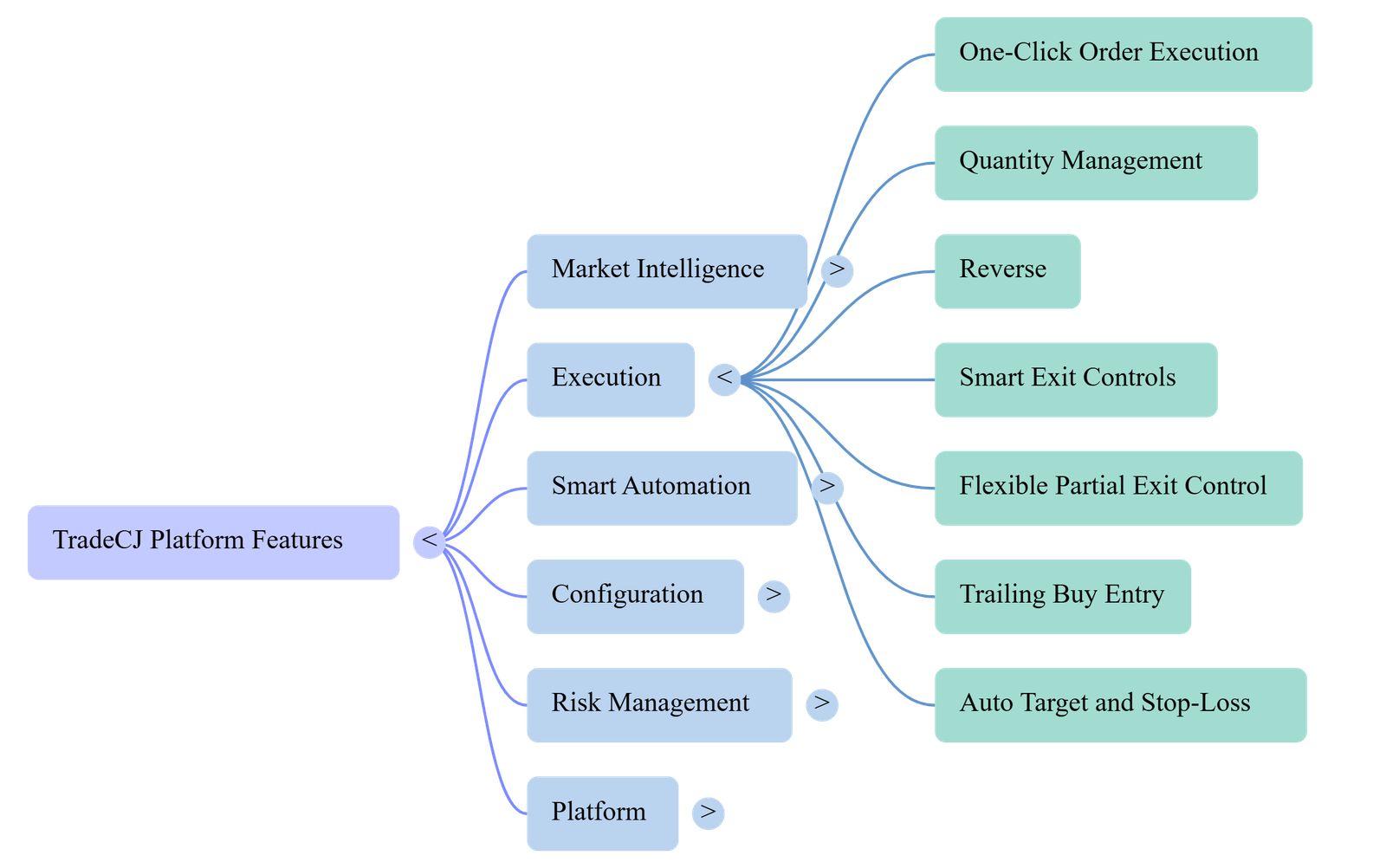
2.1 One-Click Order Execution
One-Click Order Execution ~ Because the Market Does Not Wait for You to Fill in a Form
One-Click Execution is a smart and fast way to place trades.
Instead of spending time filling forms and adjusting settings while the price moves away, you prepare everything in advance. When the right moment comes, you simply click once, and your trade is live instantly. This helps you catch opportunities before they disappear in the fast-moving forex market.
| Problem with Other Platforms | Why TradeCJ is Better |
|---|---|
| You fill lot size, stop loss, take profit while price is moving | Everything is pre-configured and ready before you trade |
| By the time you hit submit, the opportunity is gone | One single click places the full trade immediately |
| Slow execution causes missed or bad trades | Instant entry - Trade goes live before the market reacts |
| You lose focus because you are still typing settings | You stay focused on the market, not on filling forms |
How It Works
- All important settings (position size, stop loss, take profit, risk) are set up in advance.
- These settings are saved and ready in the Order Matrix.
- When you see a good setup, you just click once.
- The trade enters the market exactly as planned, no extra forms, no delays, no extra confirmations.
- This makes trading quick, accurate, and stress-free.
2.2 Quantity Management
Quantity Management ~ Because How Much You Trade Matters as Much as When You Trade.
Quantity Management helps you decide how much to trade in a smart and consistent way.
Instead of guessing the trade size under pressure during a fast market, you set your position sizes in advance for each currency pair. Every trade then automatically uses the correct size, removing emotion and making your trading more disciplined and safe.
| Problem with Other Platforms | Why TradeCJ is Better |
|---|---|
| You decide position size under pressure while the market is moving | Set your sizes calmly before the trading session begins |
| Sizing becomes inconsistent (too big or too small depending on mood) | Every trade uses the exact pre-defined size automatically |
| You have to manually enter lot size for every trade | No lot size field to fill; size is applied automatically |
| Different pairs get random sizing during the session | Each instrument has its own tailored size saved and used consistently |
How It Works
- You define and save position sizes for each currency pair before trading starts.
- These sizes are based on your strategy, risk tolerance, and the pair’s volatility.
- Once set, every trade on that pair automatically uses the correct size.
- Works for all order types and execution methods.
- You can change the settings anytime, but they stay consistent until you update them.
2.3 Reverse
Reverse ~ Close One Side. Open the Other. Before the Market Has Time to Move Further.
One-Click Reverse lets you instantly flip your trade direction.
If a trade is going against you, one single click closes the current position and opens a new trade in the opposite direction — all at the same size. This helps you quickly react to market changes without missing the move.
| Problem with Other Platforms | Why TradeCJ is Better |
|---|---|
| You must manually close the old trade, then open a new one in opposite direction | Reverse everything with just one click |
| Takes many steps and time to switch direction | Closes old trade and opens new one at the same time |
| Price moves while you are filling new order details | Switch is instant: done before the next pip moves |
| Lot size has to be set again manually | Lot size transfers automatically to the new trade |
How It Works
- Click the Reverse button on your open position.
- It instantly closes your current trade.
- At the same moment, it opens a new trade in the opposite direction.
- The position size stays exactly the same, no need to re-enter anything.
- No extra forms, no confirmation popups, no delays.
Everything happens smoothly and immediately so you never miss the reversal opportunity.
2.4 Smart Exit Controls
Smart Exit Controls ~ Exit instantly. Exit partially. Exit everything. Your call.
Smart Exit Controls give you better ways to close your trades.
Instead of only having one basic “close all” button, it offers three smart exit options. This helps you exit trades in different situations — whether you need to get out fast, take some profit, or wait for a specific price.
| Problem with Other Platforms | Why TradeCJ is Better |
|---|---|
| Only one way to exit, close the full position at market price | Three smart exit options for different situations |
| No choice when you want to close only part of the trade | Can close partial or full position easily |
| Hard to exit at a specific target price | Can set exact exit prices with Limit options |
| Forced to close everything immediately or do everything manually | Flexible tools for fast exit or planned exits |
How It Works
Smart Exit Controls offers three simple methods:
- Market Exit (ME): Closes the entire position instantly at the current market price. Best for fast reversals or emergencies.
- Limit Exit (LE): Closes only a part of your position when price reaches your chosen level. Lets you take some profit while keeping the rest running.
- Total Limit Exit (TLE): Closes the full position automatically when price hits your exact target level. No slippage.
All options work directly from the Order Management Panel with minimal clicks.
2.5 Flexible Partial Exit Control
Flexible Partial Exit Control ~ Exit as much or as little as the trade demands.
Flexible Partial Exit Control lets you close only part of your open trade whenever you want.
The market can change suddenly. Sometimes you don’t want to close the full position, just reduce it by a certain amount. This tool gives you full manual control to exit exactly as much as needed, at the exact moment you decide.
| Problem with Other Platforms | Why TradeCJ is Better |
|---|---|
| Usually only option is to close the entire position | Close any portion you want, anytime |
| Hard to reduce trade size during live moves | Instantly close exact quantity you choose |
| Remaining position gets affected or complicated | Remaining lots stay untouched with same settings |
| Limited flexibility in live trade management | Full manual control based on current market conditions |
How It Works
- Go to any open position in the Order Management Panel.
- Enter the exact quantity (lots) you want to close.
- Click to execute, that portion closes immediately at current market price.
- The rest of the position continues normally with its original stop loss and take profit.
- No automation, no schedules, you decide in real-time based on what the market is doing.
Simple, fast, and fully under your control.
| Problem with Other Platforms | Why TradeCJ is Better |
|---|---|
| Fixed limit orders often miss the pullback or get hit too early | Automatically trails the falling price for better entry |
| You have to guess the bottom of the pullback in advance | Follows the actual movement and enters on real reversal |
| Easy to miss the move while waiting | No constant monitoring needed works automatically |
| Poor entries when price reverses suddenly | Gets you in at a smart level once reversal is confirmed |
2.6 Trail Target and Stop-Loss
Trail Target
Trail Target automatically closes your trade in profit once the market reaches the Target Price you originally set.
| Field | What it means |
|---|---|
| Target Price | The price level you set in advance (stored in the backend table) at which you want to book profit. |
| Trigger Condition | The trade is closed automatically the moment the LTP meets or crosses your Target Price. |
| Visibility | Shown directly in the Order Matrix alongside the live trade. |
In short: you set the Target Price once, and the system watches the LTP for you — as soon as the market touches that level, your profit is booked without needing manual action.
Auto Stop-Loss
Auto Stop-Loss automatically closes your trade to limit losses once the market reaches the Stop-Loss price you originally set.
| Field | What it means |
|---|---|
| Stop-Loss Price | The price level you set in advance (stored in the backend table) at which you want to cut your losses. |
| Trigger Condition | The trade is closed automatically the moment the LTP meets or crosses your Stop-Loss Price. |
| Visibility | Shown directly in the Order Matrix alongside the live trade. |
Auto Target and Auto Stop-Loss work side by side on every trade — whichever price level the LTP reaches first is the one that executes.
Category 3: Smart Automation
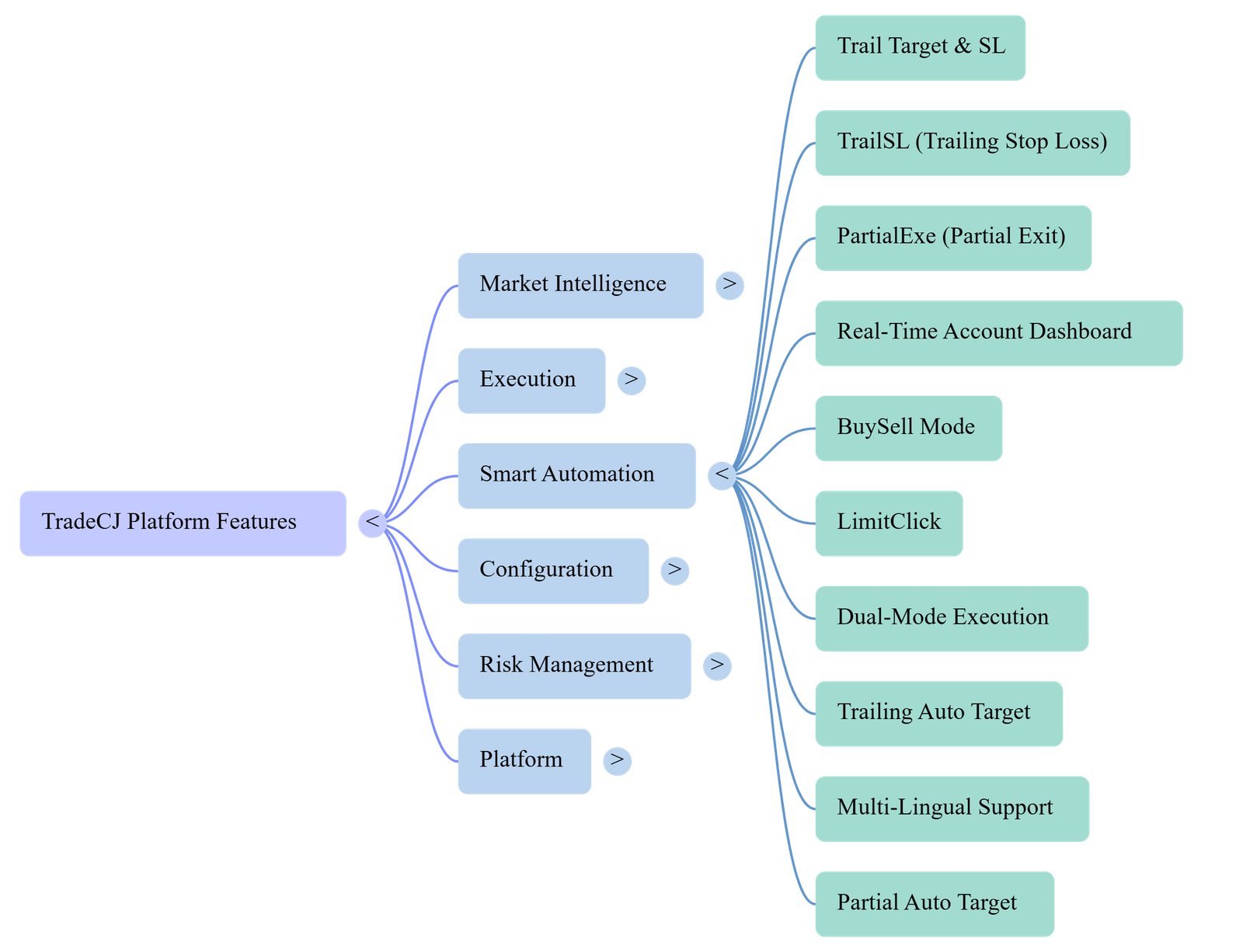
3.1 Trail Target & SL
Trail Target
Trail Target is a dynamic version of the Target. Instead of staying fixed, it moves along with the LTP once your original target has been achieved, giving your trade a chance to capture additional profit. You will find this toggle in the top bar.
Before You Trade
- The Trail Target toggle must be switched ON before you execute the trade. It cannot be applied retroactively to a trade already in progress.
Key parts
| Part | What it means |
|---|---|
| Reverse Ticks | A safety check on the way back down. Once the Target is hit, if the price then reverses for 4 consecutive down-ticks (while still staying above your Stop-Loss), the trade is closed to protect the gains already made. |
| Trail Target | The mechanism that shifts your target upward, moving in step with the $ value of the LTP as the market continues in your favor. |
| Price Drop | The amount of pull-back you are willing to allow after the Target is hit, based on your risk appetite. This drop is measured above your Stop-Loss, so your original risk floor is never breached. |
Example — Trail Target in Action\ Original Target: $150.00 | Stop-Loss: $140.00
The LTP reaches $150.00 — your original Target is hit. Trail Target keeps the trade open and shifts the target upward as price continues to rise, say to $154.00. You have set your Price Drop tolerance to $2.00 above Stop-Loss ($142.00). If the price now falls back, the trade stays open as long as it remains above $142.00. If it instead posts 4 consecutive down-ticks while still above the $140.00 Stop-Loss, Reverse Ticks closes the trade — locking in the extra gain earned between $150.00 and the exit price, instead of just the original $150.00 target.
Trail Stop-Loss
Trail Stop-Loss is a dynamic version of the Stop-Loss. Instead of staying fixed, it moves upward once a locked-in target level is achieved, protecting more of your profit as the trade progresses. You will find this toggle in the top bar.
Key parts
| Part | What it means |
|---|---|
| Lock-Target | A specific target level that you choose to lock in. Once the market reaches this level, it is treated as achieved and Trail Stop-Loss becomes active. |
| Trail-Stop-Loss | Once the Lock-Target is achieved, the Stop-Loss no longer stays fixed — it moves upward as specified by you, following the market to protect more of your gains. |
| Stop-Loss | The amount of drop you are willing to allow above your original Stop-Loss once the Lock-Target has been achieved. |
Example — Trail Stop-Loss in Action\ Original Stop-Loss: $140.00 | Lock-Target: $155.00
The LTP reaches $155.00 — your Lock-Target is achieved. Trail-Stop-Loss now begins moving your Stop-Loss upward as you specified, say to $148.00, instead of leaving it at the original $140.00. If the market keeps climbing, the Stop-Loss keeps trailing upward behind it — protecting more profit the further price moves in your favor. If the market reverses, the trade closes once it drops to the trailing Stop-Loss level, locking in a far better outcome than the original $140.00 floor.
3.2 TrailSL (Trailing Stop Loss)
TrailSL (Trailing Stop Loss) ~ The stop loss that protects your entry and your profits.
TrailSL is an intelligent Trailing Stop Loss that protects both your entry and your profits.
Unlike a normal stop loss that stays fixed, TrailSL automatically moves upward as your trade becomes profitable. This helps you lock in gains while still giving the trade room to grow.
| Problem with Other Platforms | Why TradeCJ is Better |
|---|---|
| Fixed stop loss only protects your entry | TrailSL protects both entry and accumulated profits |
| Profits can disappear when price reverses | Stop loss automatically trails the price upward |
| No protection for gains once in profit | Locks in profits as the market moves in your favour |
| Manual adjustment needed to secure profits | Works automatically with no extra effort |
How It Works
- Set your trailing ratio or distance before or after entering the trade.
- As price moves in your favour, TrailSL continuously adjusts the stop loss upward.
- The stop trails smoothly and precisely according to your settings.
- If the market reverses, the trade closes automatically — but only after securing your profits.
- Fully hands-free once activated. It works silently in the background for the entire trade.
Key Benefit: Turn good trades into even better ones by protecting profits automatically.
3.3 PartialExe (Partial Exit)
PartialExe (Partial Exit) ~ Secure profit at every stage without closing the trade.
PartialExe lets you secure profits at different stages without closing the entire trade.
It automatically scales out (takes partial profits) as the trade moves in your favour. You set the plan once, and it executes consistently — removing emotion and making your profit-taking reliable.
| Problem with Other Platforms | Why TradeCJ is Better |
|---|---|
| Manual partial exits are inconsistent and stressful | Automatic partial exits based on your rules |
| Hard to time profit-taking during live trades | Triggers at pre-defined profit levels |
| Often exit too early or too late | Scales out in stages to lock profits step by step |
| Emotions affect how much to close | Every winning trade follows the same strategy every time |
How It Works
- Set your scale-out plan before the trade (profit targets and quantities to close at each stage).
- Once activated, PartialExe monitors the trade continuously.
- When the price reaches your first profit milestone, it automatically closes the chosen portion.
- The remaining position continues running with its stop loss and targets.
- Next portions close automatically as price hits further milestones.
Key Benefit: Secure profits at every stage while letting the rest of the trade run.
3.4 Real-Time Account Dashboard
Real-Time Account Dashboard ~ Every number that matters, always in front of you.
Real-Time Account Dashboard shows you all the important numbers about your trading account at all times.
It displays your balance, equity, free margin, margin level, and other key metrics. Everything updates instantly as your trades move — so you always know exactly how your account is doing without searching or refreshing.
| Problem with Other Platforms | Why TradeCJ is Better |
|---|---|
| You have to check account status in a separate window | All key metrics always visible in one place |
| Numbers are not updated in real time | Updates automatically with every price move |
| Easy to lose track of margin and risk | Complete account awareness at every moment |
| Need to switch screens often | Stays inside the main dashboard — no navigation needed |
How It Works
- The dashboard is always present within the main trading screen.
- It shows live updates for Balance, Equity, Free Margin, Margin Level, and more.
- Numbers change instantly as trades open, move, or close.
- Clean and simple design — visible when needed, non-distracting when not.
- One-click option to hide or show financial figures (useful for screen sharing).
Key Benefit: Stay fully aware of your account condition while focusing on the market.
3.5 BuySell Mode
BuySell Mode ~ When direction is uncertain, cover both. Instantly.
BuySell Mode lets you open both buy and sell positions at the same time with just one click.
It is perfect for uncertain situations like big news events. You don’t have to guess the direction, you take both sides instantly. When the market moves strongly one way, one position profits while the other closes at its stop loss.
| Problem with Other Platforms | Why TradeCJ is Better |
|---|---|
| Hard to pick the right direction during news | Open both buy and sell instantly |
| Miss the big move if you choose wrong side | Capture the move whichever direction it goes |
| Slow to place two separate orders manually | One click places both positions together |
| High risk of missing the initial spike | Both sides are live before the move starts |
How It Works
- Activate BuySell Mode from the execution controls.
- Click once in the Order Matrix to place both a buy and a sell order at the same time.
- Both positions use your pre-configured stop loss, take profit, and lot size.
- When price breaks strongly, the winning side runs while the losing side closes automatically at its stop.
- Simple, fast, and perfect for high-impact news or uncertain markets.
Key Benefit: Remove direction guessing and catch big moves with full coverage.
3.6 LimitClick
LimitClick ~ Stop accepting the price the market gives you. Define your own entry level.
LimitClick lets you place limit orders with one simple click.
Instead of chasing the current market price, you set your own desired entry level. It helps you buy or sell at the exact price you want, with full discipline and no slippage.
| Problem with Other Platforms | Why TradeCJ is Better |
|---|---|
| Placing limit orders takes many slow steps | Place complete limit order with one click |
| You have to open ticket and fill many details | Everything is pre-configured and applied automatically |
| Takes attention away from watching the market | Quick and easy: stay focused on analysis |
| Easy to miss good entry levels | Order waits at your exact price and fills automatically |
How It Works
- Activate LimitClick mode.
- Click once in the Order Matrix to place a pending limit order.
- The entry price is automatically set at your chosen offset from current price.
- Stop loss and take profit are applied instantly.
- The order waits patiently in the market. When the price reaches your level, the trade fills completely as planned.
Key Benefit: Disciplined entries at the price you want, fast and effortless.
3.7 Dual-Mode Execution
Dual-Mode Execution ~ OneClick speed or manual precision, both in one platform.
Dual-Mode Execution gives you the best of both worlds — super fast trading or precise manual control, whenever you need it.
Switch easily between OneClick instant execution for speed and full manual mode for careful setups. Perfect for scalpers who need speed and swing traders who want precision.
| Problem with Other Platforms | Why TradeCJ is Better |
|---|---|
| Forced to choose between speed or control | Get both speed and control in one platform |
| Slow execution for scalpers | OneClick Mode for instant trade entry |
| No time to review for careful traders | Manual Mode with full order details |
| Have to use different platforms for different styles | Easy toggle to switch modes anytime |
How It Works
- Use a simple toggle to switch between modes.
- OneClick Mode (ON): Click once in the Order Matrix → trade executes instantly with no confirmation.
- Manual Mode (OFF): Click once → a full order popup opens (pre-filled with your settings) so you can review and adjust before submitting.
- You can switch modes anytime during your session without losing any setup.
- Supports multiple professional order types in manual mode.
Key Benefit: Adapt instantly to any trading situation — fast or careful.
3.8 Trailing Target
Trailing Target ~ Your profit target moves with the market. So do your returns.
Trailing Target is a smart profit target that moves with the market.
It lets your winning trades run as long as the momentum continues. Instead of a fixed target, the exit level trails behind the price automatically. You stay in the trade longer and capture bigger moves.
| Problem with Other Platforms | Why TradeCJ is Better |
|---|---|
| Fixed profit targets often close too early | Target automatically trails the price |
| You miss bigger moves by exiting too soon | Stays in the trade while momentum continues |
| Have to guess the best exit level in advance | Exits only when the market actually reverses |
| Limited profit on strong trends | Captures maximum potential from big moves |
How It Works
- Activate Trailing Auto Target on your open trade.
- Set your preferred trailing distance and sensitivity.
- As price moves in your favour, the target level automatically moves along with it.
- When the market reverses by your defined amount, the trade closes automatically.
- No need to watch the screen — it manages the exit for you.
Key Benefit: Let winners run longer while protecting profits intelligently.
3.9 Multi-Lingual Support
Multi-Lingual Support ~ TradeCJ speaks your language. So does every feature in it.
Multi-Lingual Support means the entire TradeCJ platform can work in your own language.
Trading is already difficult. This feature makes sure every button, setting, tool, and instruction appears clearly in the language you understand best — so nothing gets lost in translation.
| Problem with Other Platforms | Why TradeCJ is Better |
|---|---|
| Most platforms are only in English | Full support for **your native language. Access to 14 Languages*.** |
| Important settings are hard to understand | Every label, tool, and option is properly translated |
| Partial or poor translations cause mistakes | Complete and accurate translation everywhere |
| Only menus and buttons are translated | The entire platform including deep settings changes |
14 Languages are: Arabic, Bahasa Indonesia, Bangla, English, French, Hindi, Japanese, Korean, Portuguese, Simplified Chinese, Spanish, Thai, Uzbek, and Vietnamese.
How It Works
- Go to User Settings and select your preferred language.
- The whole platform instantly switches — including all features, buttons, Order Matrix, risk tools, and settings.
- No need to restart or log out.
- Everything from Market Watch to Trailing Stop configurations appears clearly in your language.
- The change is fast, complete, and works during live trading sessions.
| Problem with Other Platforms | Why TradeCJ is Better |
|---|---|
| Full take profit closes the entire trade | Closes only a portion automatically |
| You miss further profits if market continues | Remaining position keeps running for more gains |
| Have to manually close part of the trade | Fully automatic partial exit at target |
| Difficult to manage under live pressure | Set once and it executes without your input |
Category 4: Configuration
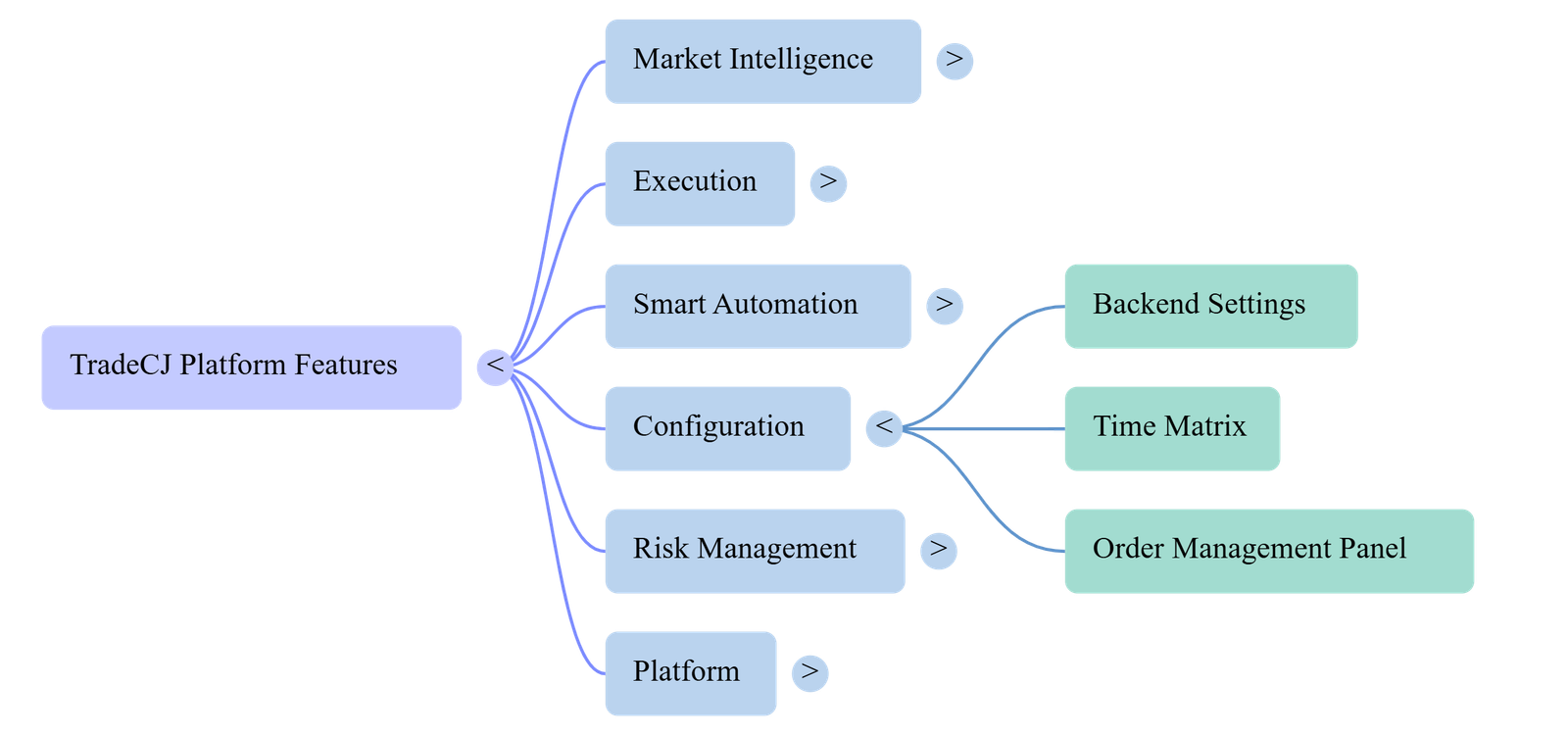
4.1 Backend Settings
Backend Settings ~ Every instrument configures your way.
Backend Settings lets you customize the Order Matrix for every currency pair and instrument individually.
Instead of using the same settings for everything, you can set different stop loss, take profit, lot sizes, and active hours for each pair. The platform then remembers and applies your preferred setup automatically.
| Problem with Other Platforms | Why TradeCJ is Better |
|---|---|
| Same default settings for all instruments | Custom settings for each instrument |
| Have to adjust settings every time you switch pairs | Settings are saved and applied automatically |
| Wastes time on manual reconfiguration | Ready to trade exactly as you want from the start |
| One-size-fits-all approach | Matches the unique volatility and style of each pair |
How It Works
- Go to Backend Settings to configure each instrument separately.
- Set custom stop loss / take profit levels and lot sizes for the Order Matrix.
- Define active trading hours for each pair (e.g., London session for EUR/USD).
- All configurations are saved permanently.
- When you open the platform, everything loads exactly as you set it, no extra work needed.
Key Benefit: A personalized trading environment that feels built just for you.
4.2 Time Matrix
Time Matrix ~ Because a trade that doesn't move shouldn't be allowed to move against you.
Time Matrix automatically manages trades that are not moving.
If a trade stalls for too long, it protects your capital by moving the stop loss to break-even or closing the trade. This prevents good entries from turning into losses just because the market stopped moving.
| Problem with Other Platforms | Why TradeCJ is Better |
|---|---|
| Stalling trades stay open with full risk | Automatically manages time-based risk |
| You must manually watch and close stuck trades | Moves stop to break-even or closes automatically |
| Easy to forget about open positions | Runs in the background with no monitoring needed |
| Decisions made under pressure or emotion | Disciplined, rule-based management every time |
How It Works
- Set a time window for your trades before the session.
- If the trade does not reach its target within that time:
- First, the stop loss automatically moves to break-even (protects your entry).
- If it still doesn’t move, the trade closes at break-even.
- The whole process is fully automatic.
- You can focus on new opportunities without worrying about stuck trades.
Key Benefit: Time becomes a controlled factor instead of an open risk.
4.3 Order Management Panel
Order Management Panel ~ Complete trade visibility from first click to final close.
Order Management Panel gives you complete visibility and control over all your trades in one place.
From the moment you open a trade, through pending orders, to closed trades and performance reports, everything is easy to see and manage without switching screens.
| Problem with Other Platforms | Why TradeCJ is Better |
|---|---|
| Hard to track multiple open trades | All trades visible in one persistent panel |
| Need to open separate windows for pending or closed trades | Everything organized in clear tabs at the bottom |
| Performance tracking requires extra tools | Built-in Report tab with key statistics |
| Easy to lose track during busy sessions | Full trade lifecycle always accessible and updated live |
How It Works
The panel sits at the bottom of the dashboard with five simple tabs:
- Open & Pending - Shows all active positions and waiting orders together.
- Open - Live trades with real-time P&L, stop loss, and take profit.
- Pending - Orders waiting to trigger (modify or cancel easily).
- Closed - Complete history of all finished trades in the session.
- Report - Quick performance summary (win rate, P&L, etc.).
Key Benefit: Full control and clear visibility from first click to final close, without leaving your main screen.
Category 5: Risk Management
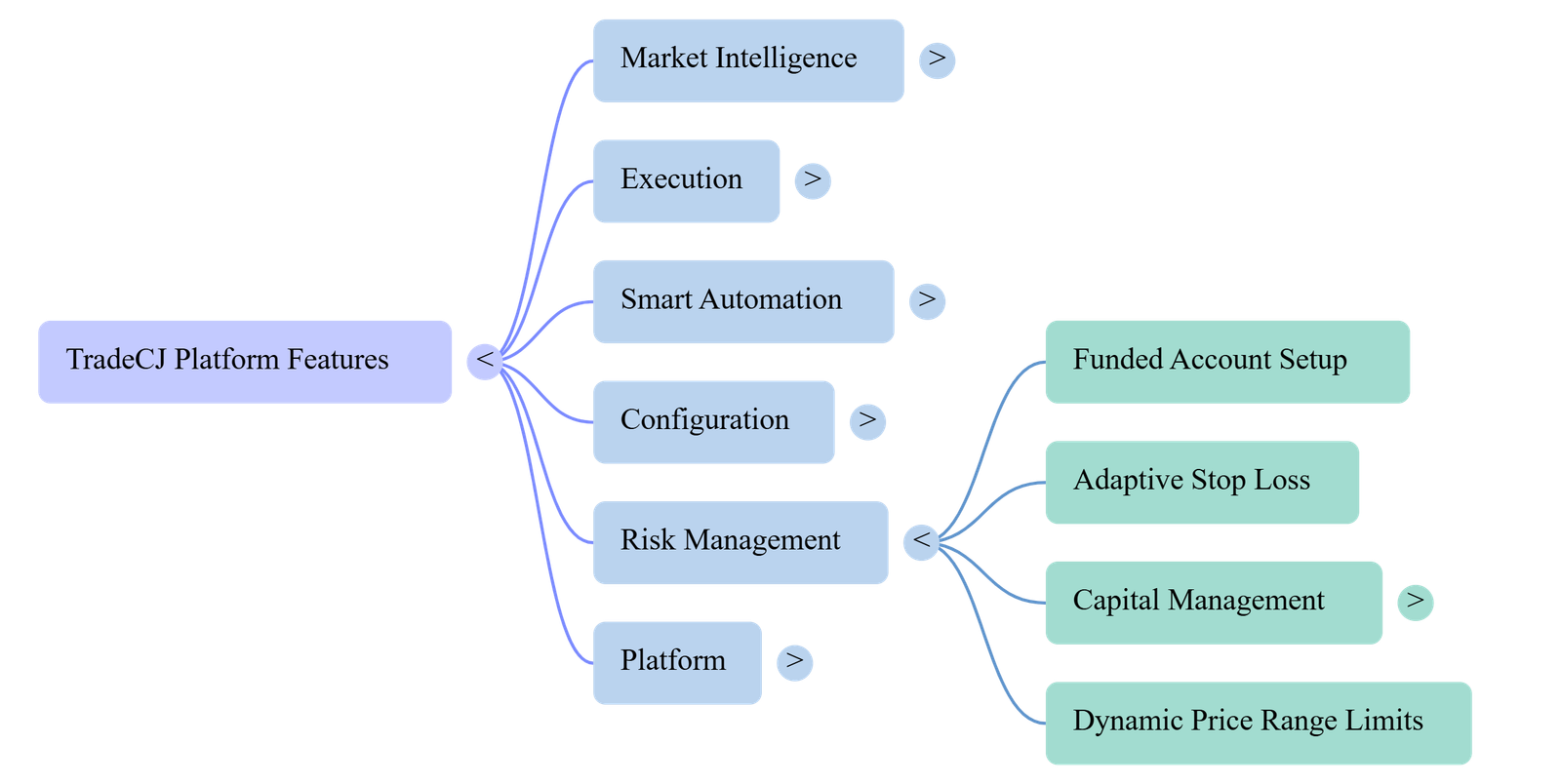
5.1 Funded Account Setup
Funded Account Setup ~ Your prop firm's rules inside TradeCJ.
Funded Account Setup helps you follow your prop firm rules automatically inside the platform.
It prevents accidental violations like daily loss limits or drawdown rules by tracking everything for you and giving early warnings. No more losing a funded account due to simple tracking mistakes.
| Problem with Other Platforms | Why TradeCJ is Better |
|---|---|
| Easy to break rules without realising | Rules are automatically monitored and enforced |
| Manual tracking of daily loss and drawdown | Real-time tracking with early warning buffers |
| Risk of violating limits during busy sessions | Automatic alerts and halts before violations |
| Have to remember prop firm rules yourself | All rules set once and applied consistently |
How It Works
- Go to Funded Account Setup in the User Menu.
- Set your Risk Limits (daily loss, drawdown, safety buffers).
- Configure Profile Details (account size, max trades per day, etc.).
- Define Reset Rules (daily, weekly, etc.).
- The platform then monitors everything live and warns you before limits are breached.
Key Benefit: Trade with confidence knowing your funded account rules are always protected automatically.
5.2 Adaptive Stop Loss
Adaptive Stop Loss ~ Defined before you enter. Adjustable when the trade demands it.
Adaptive Stop Loss gives you flexible and smart ways to manage your stop loss.
You can set a predefined stop loss before entering the trade for discipline, or dynamically adjust it later if market conditions change. It combines both fixed strategy and live flexibility in one tool.
| Problem with Other Platforms | Why TradeCJ is Better |
|---|---|
| Only one rigid way to set stop loss | Two modes — Predefined and Dynamic |
| Hard to adjust stop loss after entry | Easily adjust stop loss on live trades |
| Risk is either too fixed or too manual | Pre-set for discipline + flexible for live conditions |
| Cannot adapt to changing market volatility | Adapts quickly to new price action or news |
How It Works
- Predefined SL: Set your stop loss levels in the Order Matrix before trading. Every trade automatically uses this risk setting.
- Dynamic SL: On any open trade, you can quickly adjust the stop loss if the market changes.
- Adjustments are made directly without closing the trade.
- Both modes work together in the same session.
Key Benefit: The right stop loss for every situation — disciplined at entry and responsive during the trade.
5.3 Capital Management
*Daily capital, margin, and trading risk controls — a guide for setting up and understanding this feature.*
Overview
Capital Management is a Risk Management feature that lets you define, in advance, how much capital you are willing to risk in a trading day, and the exact conditions under which your trading activity should automatically stop. Once configured, the system enforces these limits on your behalf — removing the need for manual monitoring and reducing the chance of emotional, in-the-moment decisions.
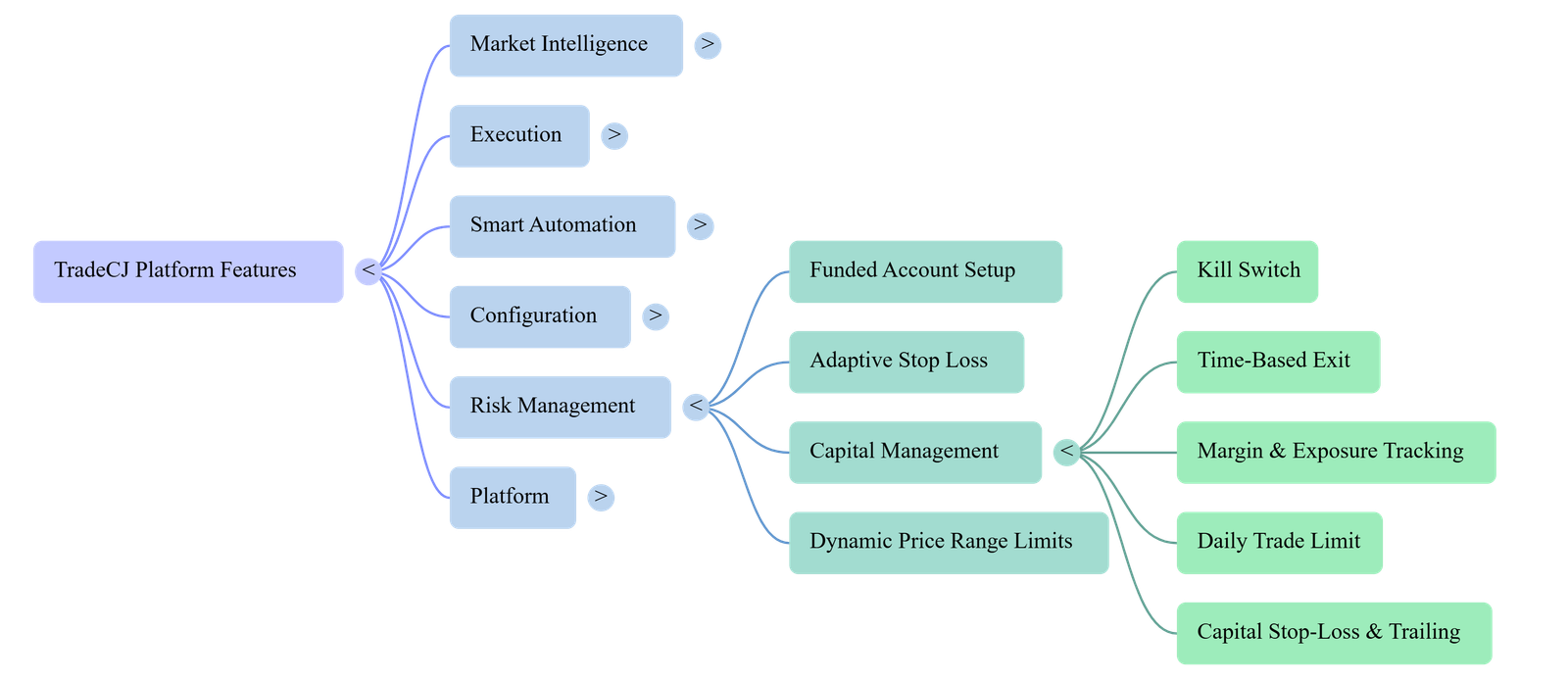
This feature is made up of five controls that work together:
- Kill Switch — a time-based safety pause on your account.
- Time-Based Exit — an automatic exit based on how long a position has been open.
- Margin & Exposure — a live view of how much of your capital is in use.
- Daily Trade Limit — a cap on the number of trades you can place in a day.
- Risk Management (Loss, Profit & Trailing controls) — capital-based stop-loss and profit-target rules.
Getting started
Account and capital overview
Before setting up your controls, the top of the screen gives you a snapshot of your account:
| Field | Description |
|---|---|
| Login ID | Your unique trading account number. |
| Trading Date | The date these settings apply to. |
| Initial Capital | The capital you started the trading day with. |
| Current Capital | Your live capital, updated as trades close. |
| Closing Capital | Capital balance at the end of the trading day. |
| Free Capital | Capital currently available to open new trades. |
| Today's Profit / Loss / Net P&L | Your running performance for the day. |
Important — Read Before You Begin
- Each control (Kill Switch, Time-Based Exit, Daily Trade Limit, etc.) has its own ON/OFF toggle. A control only protects your account once its toggle is switched ON — simply entering a value is not enough.
- As a new user, we recommend turning ON every toggle so all safety nets are active from your very first trade.
Settings Are Locked for the Day
- Capital Management is a once-per-day setup. Once you save your limits for a trading day, they cannot be modified until the next trading day begins.
- Double-check every value — Trading Duration, Holding Time, Max Trades, and all percentage limits — before you hit Save.
Kill switch
The Kill Switch is your account's cooling-off period. Its purpose is to protect you from "revenge trading" — the tendency to place impulsive trades to chase back a loss. When enabled, it halts all trading activity on your account for a duration you choose.
| Field | What it means |
|---|---|
| Trading Duration | The length of time trading stays enabled before the Kill Switch takes effect (e.g. 12 hr). |
| Trading will be Enabled | The exact date and time your trading window opened, shown for reference. |
How it protects you:
- If you hit your loss limit or simply need to step away, the Kill Switch stops you from re-entering the market until the timer you set has elapsed.
- This built-in pause is designed to give you time to reset emotionally before placing another trade.
Time-based exit
Time-Based Exit automatically closes a position after it has been open for a set amount of time, regardless of profit or loss. This prevents a trade from being left open indefinitely and exposed to unnecessary market risk.
| Field | What it means |
|---|---|
| Maximum Holding Time | The maximum number of minutes a position may remain open before it is auto-closed (e.g. 10 min). |
Margin & exposure
This panel gives you a real-time view of how your capital is being deployed as margin against open positions.
| Field | What it means |
|---|---|
| Used Margin | Capital currently locked up in open positions. |
| Free Capital | Capital that remains available to open new trades. |
| Max Usable Capital | The maximum capital you are permitted to deploy at once (governed by the Max Capital Usage % in Risk Management). |
| Margin Level | Used Margin shown as a percentage of Current Capital. |
| Account Leverage | The leverage ratio applied to your account (e.g. 1:500). |
| Capital Utilization | Used Margin ÷ Current Capital, shown as a percentage. |
Daily trade limit
This control caps the number of trades you can place in a single trading day, which helps prevent overtrading.
| Field | What it means |
|---|---|
| Maximum Trades | The total number of trades allowed for the day. |
| Trades Used | How many of those trades have already been placed. |
| Remaining Trades | How many trades you have left for the day. |
Once Trades Used reaches Maximum Trades, no further trades can be opened until the next trading day.
Risk management
This is the core of Capital Management. It lets you define, in monetary and percentage terms, exactly how much you are willing to risk and how much profit you are aiming to lock in — before you place a single trade.
| Field | What it means |
|---|---|
| Max Capital Usage % | The maximum percentage of your Current Capital that may be used as margin at any time. This is your Capital Stop-Loss ceiling on exposure — a hard limit on how much of your account can be put to work in the market at once. |
| Max Daily Loss % | The maximum percentage of capital you are willing to lose in a day. Once your losses reach this amount, trading stops for the day. |
| Profit Target % | The percentage gain that, once reached, is treated as your goal for the day. |
| Trailing Loss % | A stop-loss that moves along with your capital as your profit grows, locking in gains while still giving the trade room to breathe. |
How an Exit Is Triggered — Whichever Comes First
Capital Management runs Stop-Loss, Profit Target, and Time-Based Exit checks simultaneously, at all times. Whichever condition is met first is the one that closes your position or stops your trading for the day:
- If your Max Daily Loss % is reached before your Profit Target or Maximum Holding Time — trading stops for the day on the loss limit.
- If your Profit Target % is reached first — trading is flagged as target achieved.
- If neither limit is reached but the Maximum Holding Time elapses — the position is closed automatically on time.
This "first condition wins" logic ensures only one outcome applies at a time.
Quick setup checklist
Turn ON the toggle for every control you want active
Kill Switch, Time-Based Exit, Daily Trade Limit, and Risk Management.
Set your Trading Duration and Maximum Holding Time
Configure the time-based controls first.
Set your Maximum Trades for the day
Define how many trades are allowed.
Set your Max Capital Usage %, Max Daily Loss %, Profit Target %, and Trailing Loss %
Enter all risk limits carefully.
Review every value carefully
Once saved, these settings are locked for the rest of the trading day.
Click Save to activate Capital Management for the day
5.4 Capital SL & Trailing Capital SL
Capital Stop-Loss (Max Capital Usage %)
Capital Stop-Loss is the limit you place on how much of your total capital can ever be exposed to the market at one time. You decide this percentage at the start of the day, and the system will not let your open positions use more capital than this ceiling allows.
Example\ Current Capital: $321,650.00 | Max Capital Usage %: 20.00%
Capital Stop-Loss (Max Usable Capital) = $321,650.00 × 20% = $64,330.00
A maximum of $64,330.00 of your capital can be used as margin at any given time — the rest stays protected and untouched.
Trailing Loss % (Trailing Capital Stop-Loss)
A regular stop-loss stays fixed once it is set. A Trailing Stop-Loss is different — it moves in the same direction as your profit, so that as your capital grows, your protection level rises with it. This lets you lock in gains you've already made, while still giving the trade room to move naturally.
Trailing Loss % also uses a ratio (e.g. 1 : 0.8) to define how closely the stop-loss follows your capital. A ratio of 1 : 0.8 means for every $1.00 your capital increases, your trailing stop-loss level rises by $0.80.
Example — Trailing Ratio 1 : 0.8\ Current Capital: $321,650.00 | Trailing Loss %: 0.75%
Starting Trailing Stop-Loss cushion = $321,650.00 × 0.75% = $482.47
Suppose your capital then grows by $1,000 (from favorable trades) to $322,650.00. At a 1 : 0.8 trailing ratio, your stop-loss level moves up by $1,000 × 0.8 = $800.00. So instead of staying at the original level, your protected floor rises by $800, locking in most of the new gain — while the remaining $200 of "give" allows normal price fluctuation without closing the trade prematurely. If capital were to fall back after that point, the trade would only close once losses erased that protected floor — not your entire profit.
5.5 Dynamic Price Range Limits
Dynamic Price Range Limits ~ Your strategy has price boundaries. Now your execution does too.
Dynamic Price Range Limits lets you set price boundaries for your trades.
It prevents orders from executing outside the price range your strategy allows — protecting you from bad fills during news spikes, gaps, or volatile moments.
| Problem with Other Platforms | Why TradeCJ is Better |
|---|---|
| Orders can fill at bad prices during spikes | Automatically blocks executions outside your range |
| No control over execution price range | You define and enforce upper and lower boundaries |
| Easy to get poor entries in fast markets | Keeps all trades within your planned price zone |
| Have to react manually to volatility | Works automatically across all execution modes |
How It Works
- Set an upper price limit and lower price limit for the instrument.
- Any order trying to execute outside this range is automatically blocked.
- Works with OneClick, LimitClick, BuySell Mode, and others.
- You can adjust the boundaries anytime during the session.
- Changes apply instantly to new orders without affecting current positions.
Key Benefit: Your strategy’s price rules are automatically protected during wild market conditions.
Category 6: Platform
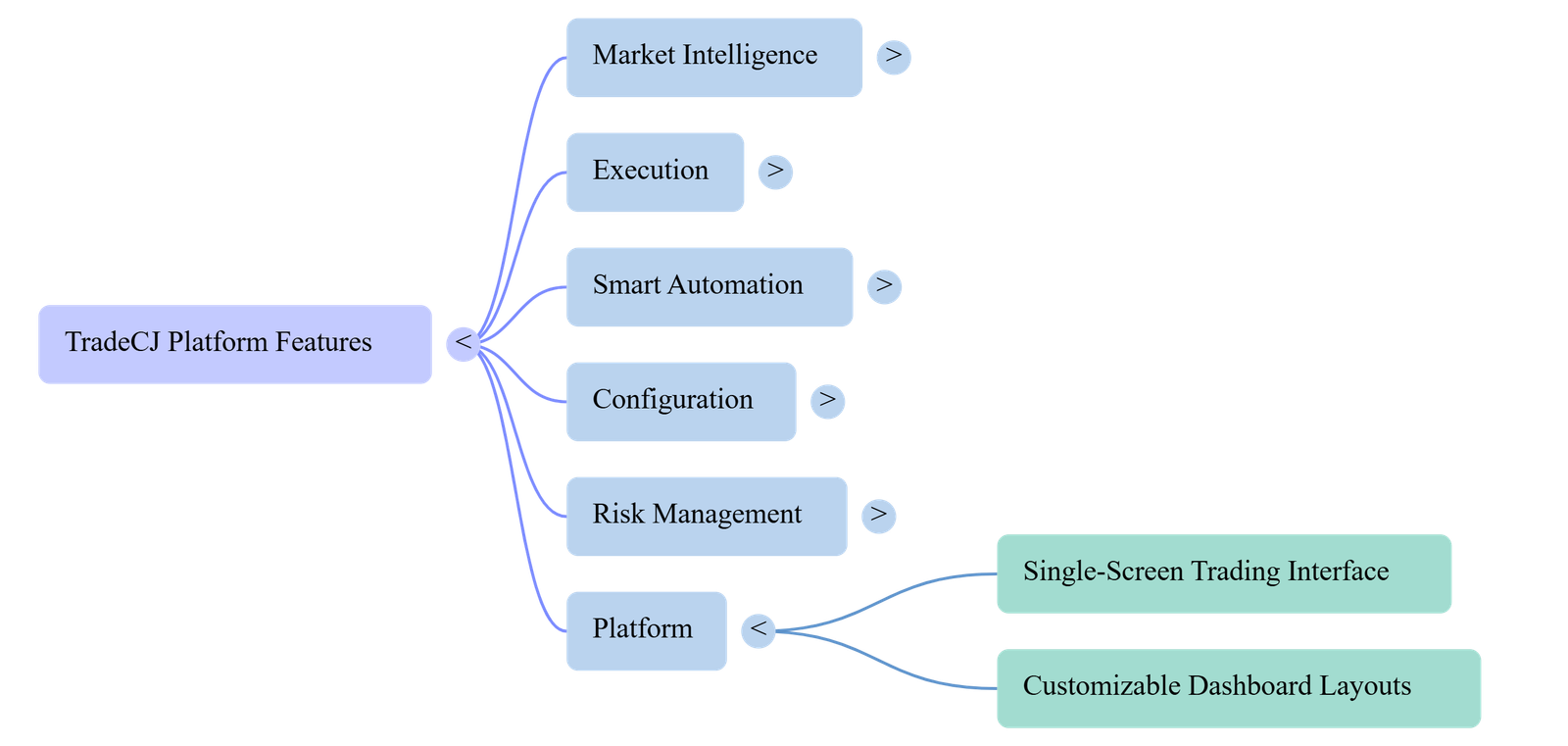
6.1 Single-Screen Trading Interface
Single-Screen Trading Interface ~ When everything is in one place, nothing gets in the way.
Single-Screen Trading Interface puts everything you need in one place.
No switching between windows, tabs, or platforms. The chart, order tools, market watch, account info, and all controls are visible together on a single screen. This reduces distraction and helps you focus on trading.
| Problem with Other Platforms | Why TradeCJ is Better |
|---|---|
| Need to switch between multiple windows | Everything visible on one single screen |
| Wastes time navigating between tools | Instant access to all features without leaving the view |
| High distraction and mental load | Clean, unified environment with real-time updates |
| Easy to miss important information | All key tools update together automatically |
How It Works
- The entire platform is designed as one unified screen.
- Smart Market Watch, Chart, Order Matrix, Automation tools, Account Dashboard, and Order Management Panel are all visible at once.
- Everything updates in real time as you trade.
- Switching pairs instantly updates the chart and tools together.
- No extra windows or tab switching needed.
Key Benefit: Less friction, better focus, and smoother trading experience.
6.2 Customizable Dashboard Layouts
Customizable Dashboard Layouts ~ Arrange the platform around the way you trade.
Customizable Dashboard Layouts let you arrange the entire platform exactly the way you like.
You can choose from different base layouts and then resize or move every section (chart, order matrix, market watch, etc.) to match your personal trading style and workflow.
| Problem with Other Platforms | Why TradeCJ is Better |
|---|---|
| Fixed default layout that doesn’t suit everyone | Multiple layout options to choose from |
| Limited ability to move or resize sections | Fully customizable — resize and reposition everything |
| Have to adapt your style to the platform | Platform adapts to your preferred workflow |
| Layout feels crowded or unbalanced | Make the chart big, matrix central, or balanced as you wish |
How It Works
- Choose from three base layout options.
- Then freely resize and reposition all major sections: Chart, Order Matrix, Market Watch, Account Info, etc.
- Make changes anytime during your trading session.
- Switching layouts does not affect your open trades or settings.
- Save your favorite arrangement for quick use.
Key Benefit: A trading platform that truly fits around how you trade.
---